

Mac Mini M4 SSD Installation Guide
Complete step-by-step guide to install your 2TB SSD upgrade. No special tools required!
What You'll Need
Make sure you have everything ready before starting
Tools Required
- T5 Torx - Inner plate screws
- T3 Torx Plus - Fan screws (2x)
- T5 Torx Plus - Fan screws (2x)
- T8 Torx Plus - SSD screw
- Opening picks - Bottom cover
- Spudger - Prying SSD
Hardware
- Your Mac Mini M4 (base model only)
- 2TB SSD upgrade module (included in your order)
- USB-C cable (included with Mac Mini)
- A second Mac for Apple Configurator
Software
- Apple Configurator (free from Mac App Store)
- macOS installer (will download automatically)
- Your Time Machine backup (recommended)
Important: Read Before Starting
- •This installation is ONLY compatible with the base Mac Mini M4. M4 Pro models use different storage architecture.
- •Back up all your data before starting. While the installation is safe, data loss can occur during restoration.
- •The installation process will erase your current drive. Make sure you have a complete backup before proceeding.
Installation Steps
Follow these steps carefully for a successful installation
Backup Your Data
Before starting, create a complete Time Machine backup of your Mac Mini. Connect an external drive and go to System Settings > General > Time Machine. Start a backup and wait for it to complete.
Warning
Never skip this step! A backup ensures you can recover your data if something goes wrong.
Shut Down Your Mac Mini
Completely shut down your Mac Mini:
- Click the Apple menu in the top-left corner
- Select 'Shut Down' and wait for the system to power off completely
- Flip over your Mac mini and place it on a clean, flat surface
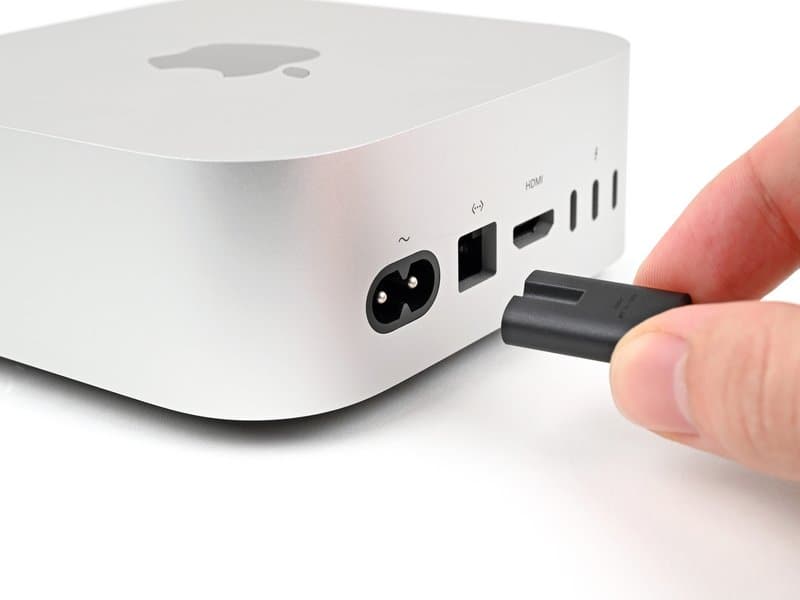
Remove the Bottom Cover
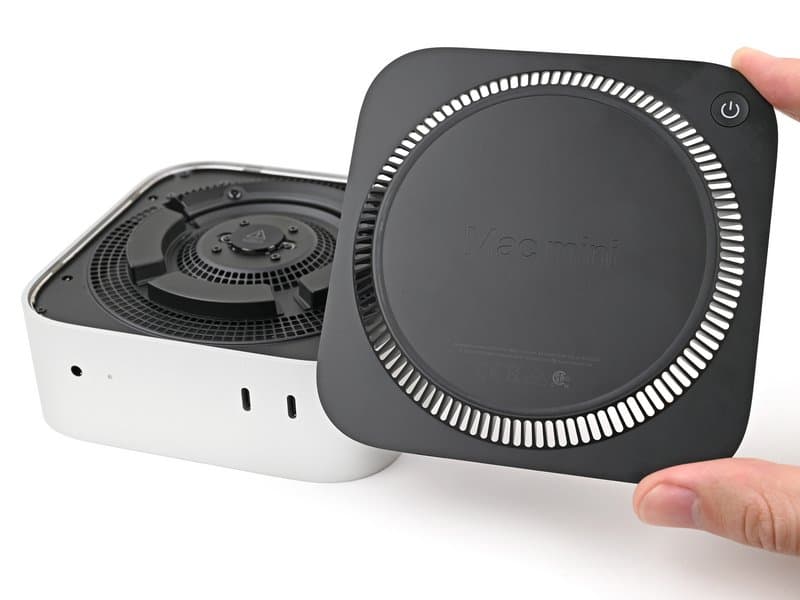
The bottom cover is held by four corner pins. Use an opening tool to release them:
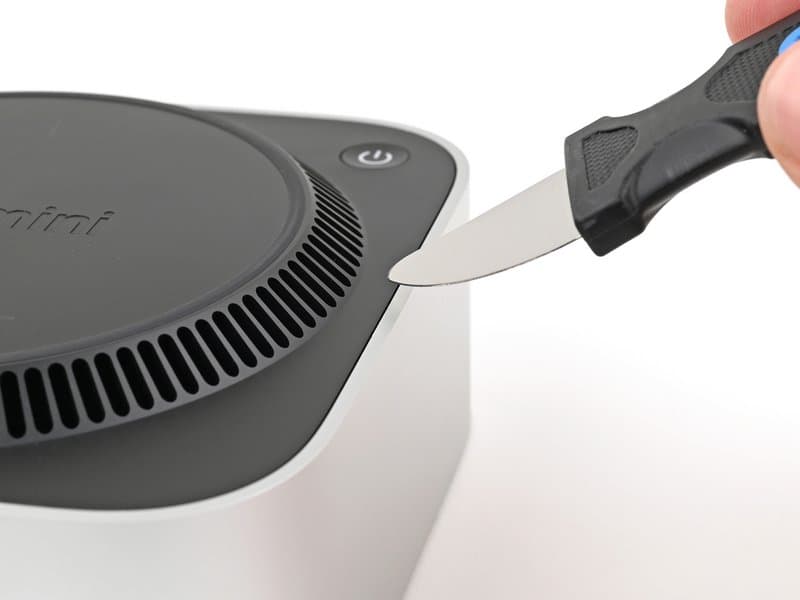
Insert a Jimmy tool into the gap between bottom cover and chassis
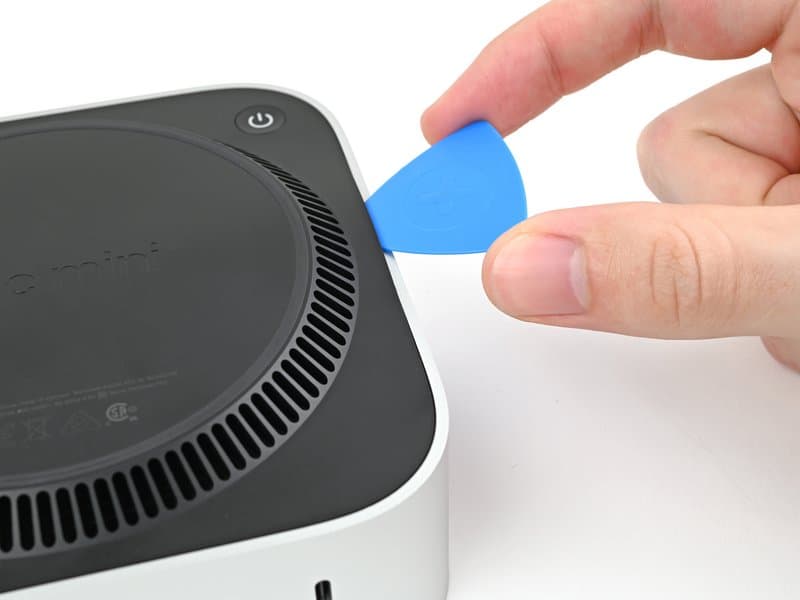
Slide pick along perimeter, twist to release each of the 4 corner pins
Pro Tips:
- Use plastic spudgers in vent holes to avoid scratching aluminum
- Keep pick less than 1 inch from power button to avoid cable damage
- Listen for an audible click when each pin releases
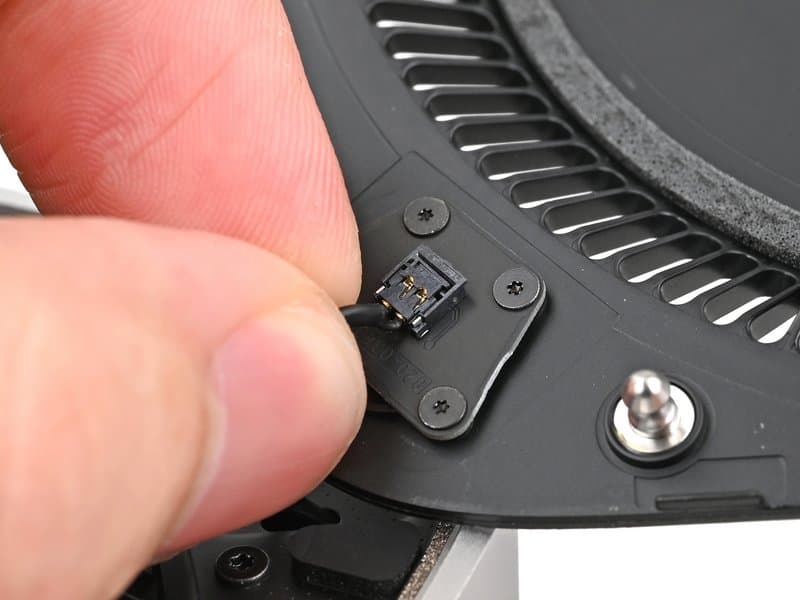
Warning
The power button cable is fragile! You can prop up the bottom cover instead of disconnecting it.
Remove the Inner Plate
Remove the inner plate to access the fan and SSD:
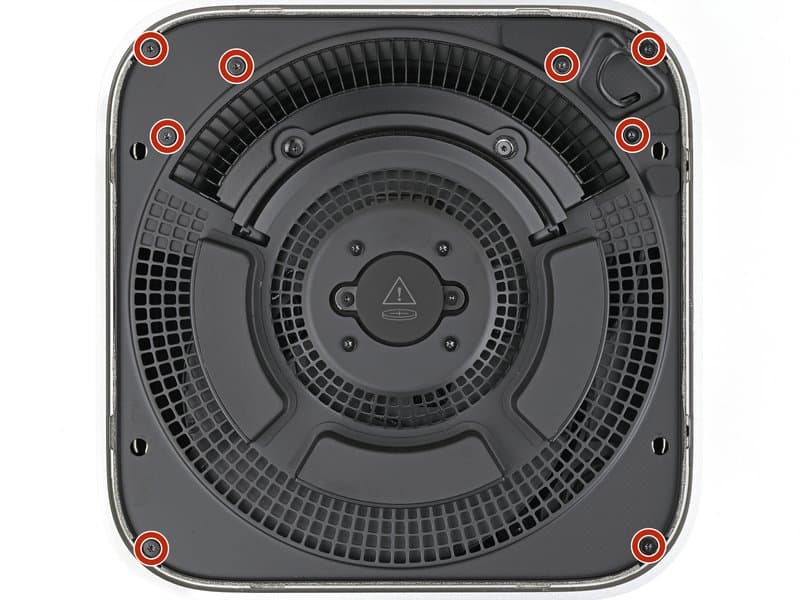
Remove the 8 x 3.4mm T5 Torx screws (track each position!)
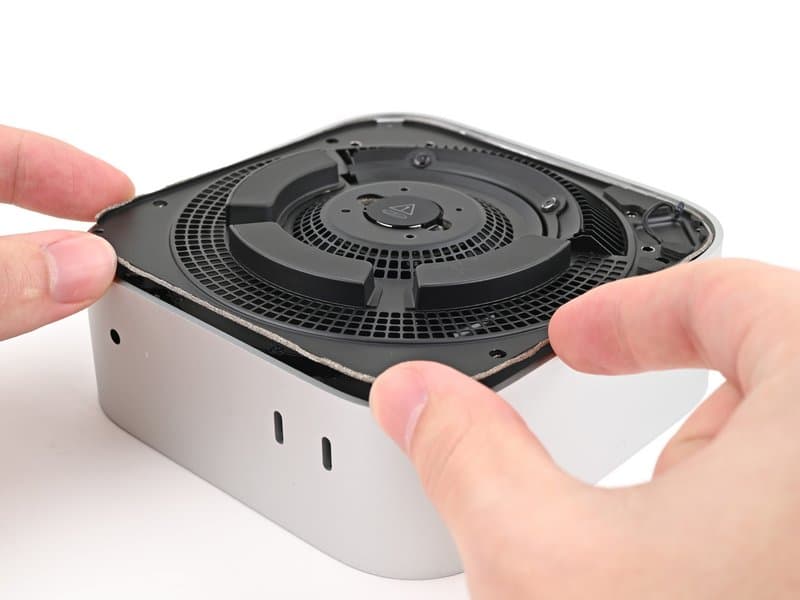
Pry up the plate using clip slots, then flip it over (cable still connected)
Required Tools:
- T5 Torx screwdriver - for inner plate screws
- T3 Torx Plus - for 2 x 2.4mm fan screws
- T5 Torx Plus - for 2 x 7.9mm fan screws
- T8 Torx Plus - for 1 x 4.1mm SSD screw
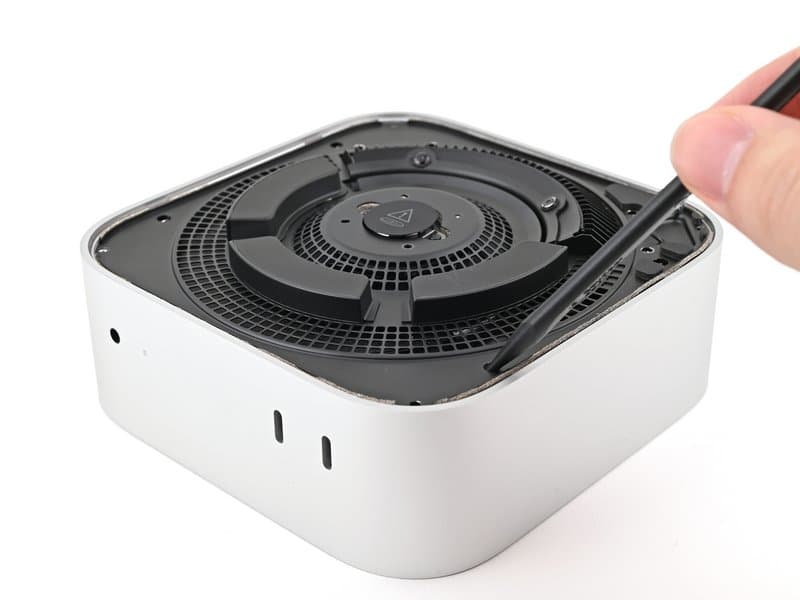
Tip
Apply constant downward pressure on Torx screws to prevent stripping. A magnetic mat helps organize screws.
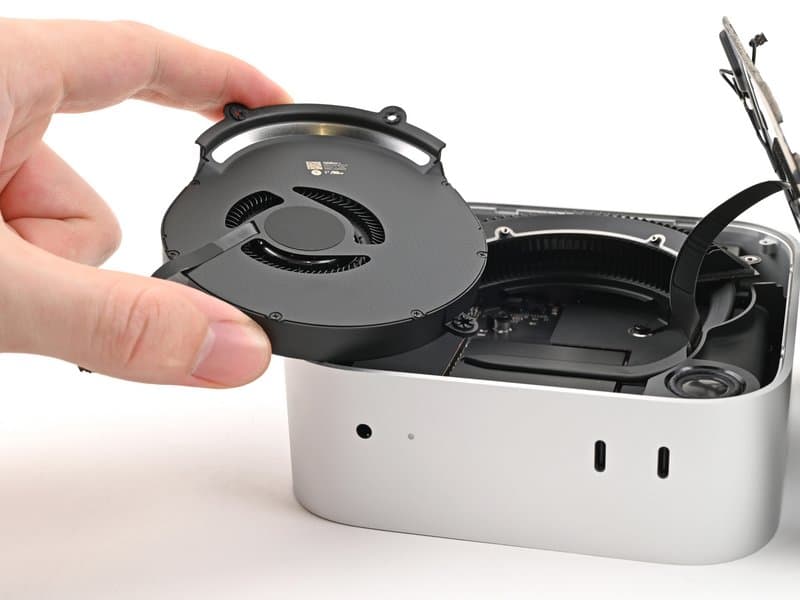
Remove the Fan
The fan must be removed to access the SSD:
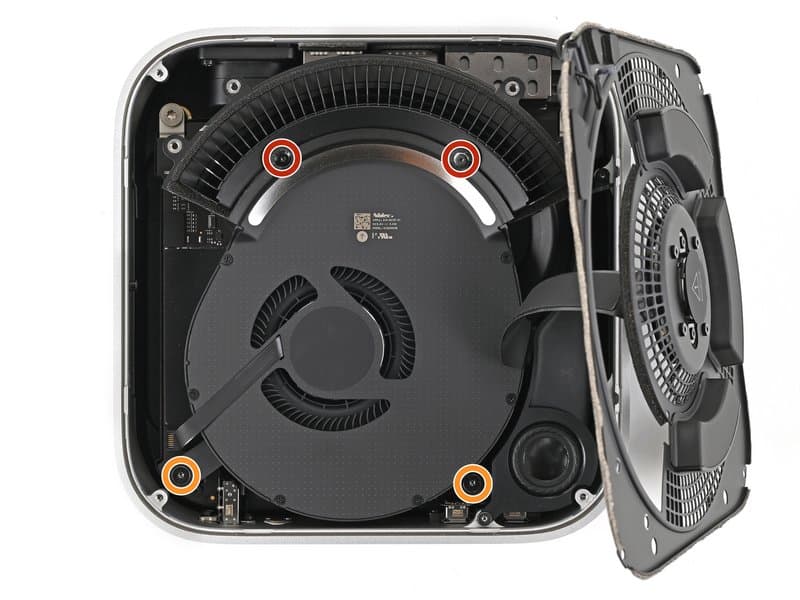
Remove 2 x 2.4mm T3 screws and 2 x 7.9mm T5 screws
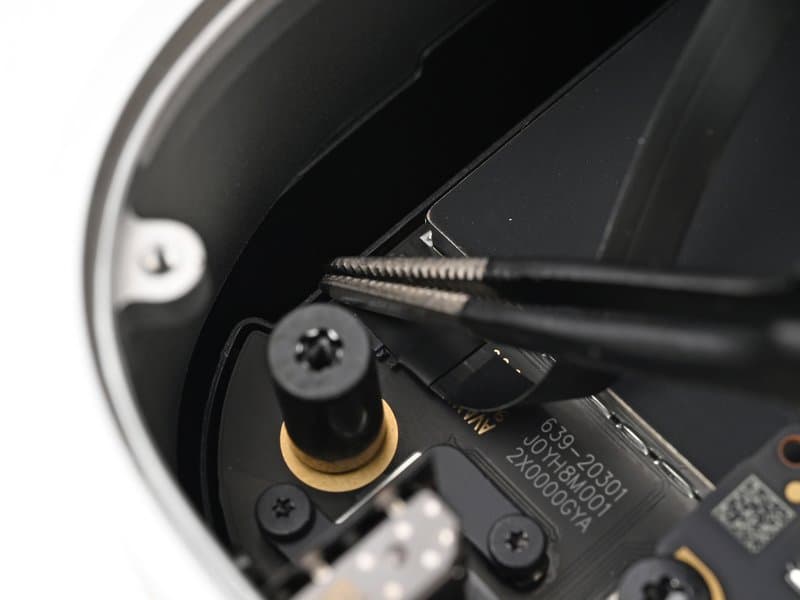
Peel back tape, flip up ZIF locking tab, slide cable out
Tip
The fan ZIF connector has a locking tab - flip it up before pulling the cable, then slide straight out.
Install the SSD Module
Now you can access and replace the SSD:
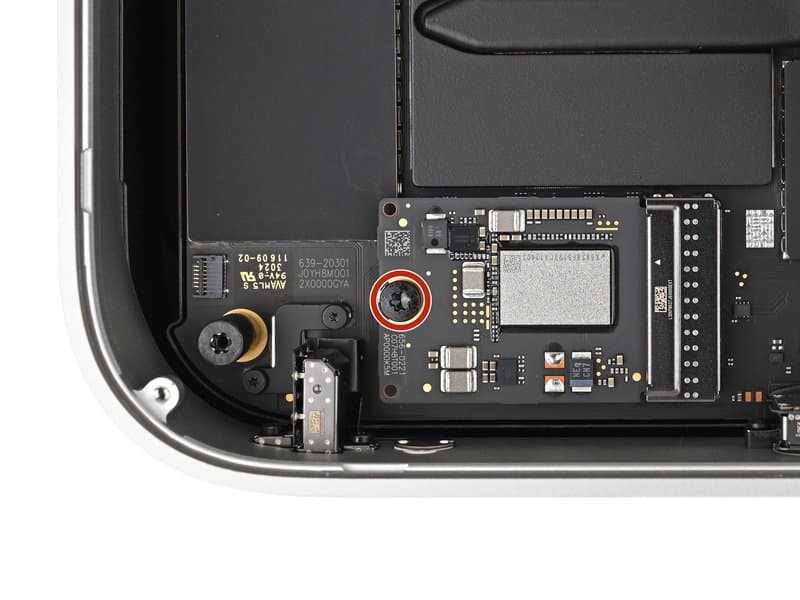
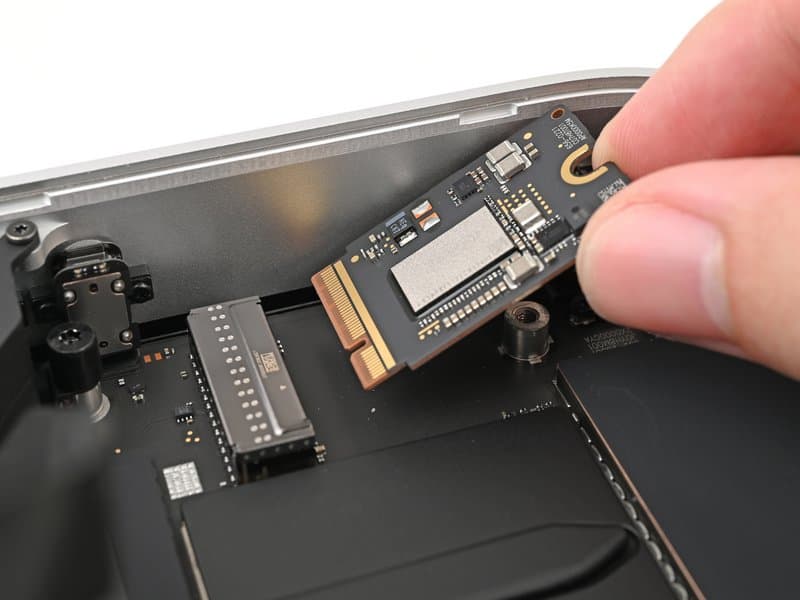
Remove the 4.1mm T8 Torx Plus screw securing the SSD
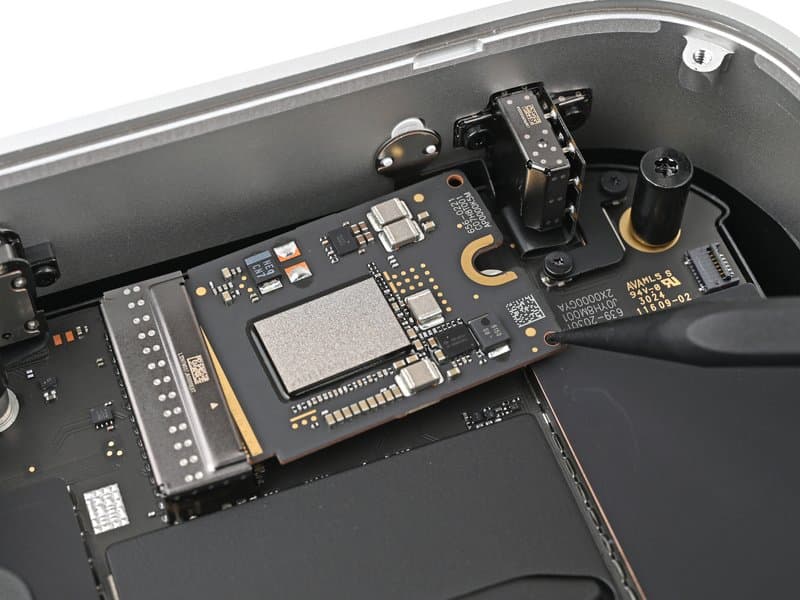
Use spudger in access holes, alternate sides when prying
SSD Removal & Installation:
- Removal: Insert spudger into holes along SSD bottom edge
- Alternate sides when prying to avoid tilting the SSD
- Installation: Insert new SSD at a 30-degree angle
- Gently wiggle it into place until it sits completely flat
- Never force - if it does not slide in easily, check alignment
Warning
Do not force the SSD. If it doesn't go in easily, check the alignment and try again.
Close the Mac Mini
Follow the disassembly steps in reverse order:
Reassembly Checklist:
- Secure SSD with T8 screw
- Reconnect fan cable (slide into ZIF, flip tab down)
- Replace fan screws (2x T3, 2x T5)
- Reattach tape over fan connector
- Slide inner plate under heat sink lip, secure with 8 T5 screws
- Reconnect power button cable if disconnected
- Align bottom cover pins, press until all 4 click
Enter DFU Mode & Restore with Apple Configurator
To initialize your new SSD, you'll need to use Apple Configurator:
- Download and install Apple Configurator from the Mac App Store on another Mac
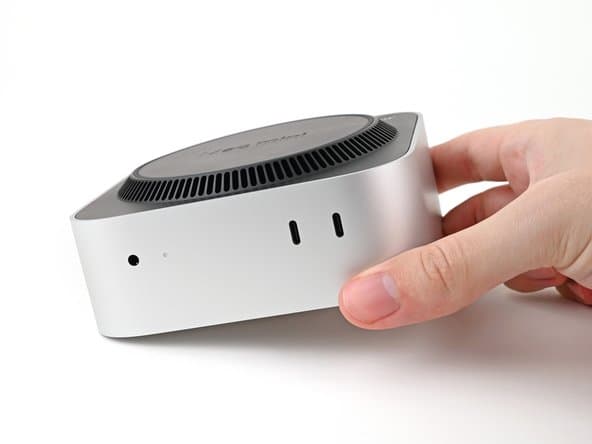
- Connect your Mac Mini to the other Mac using a USB-C cable
- While connecting, press and hold the power button on the Mac Mini until it enters DFU mode (screen stays black)
- Apple Configurator will detect your Mac Mini and guide you through the restore process
Tip
If your Mac Mini doesn't appear in Apple Configurator, try a different USB-C cable or port.
Restore from Backup
Once the restore is complete, your Mac Mini will restart. Follow the setup assistant and choose to restore from your Time Machine backup. Your Mac Mini will be exactly as you left it, but now with 2TB of storage!
Troubleshooting
Mac Mini won't turn on
Make sure the SSD module is fully seated and the bottom cover is properly locked. Remove and reinstall if necessary.
Apple Configurator doesn't detect Mac
Try a different USB-C cable or port. Make sure you're holding the power button the entire time while connecting.
Installation successful but storage not showing
The restore process should format the drive automatically. If not, open Disk Utility and format the new drive as APFS.
System running slower after installation
This should not happen with our 1:1 replica. Contact our support if you experience any performance issues.
Need Help?
If you run into any issues during installation, our support team is here to help!
Contact Support